Chrome extension - how it works
NF Sidekick for Chrome
A panel that opens beside the Street page you already have open and shows what NF Tools holds on that record - referrals, the board, the photos, and on a lettings property the terms of business, the next inspection, compliance and rent guarantee. You can refer a client or order a board straight from it, without leaving Street.
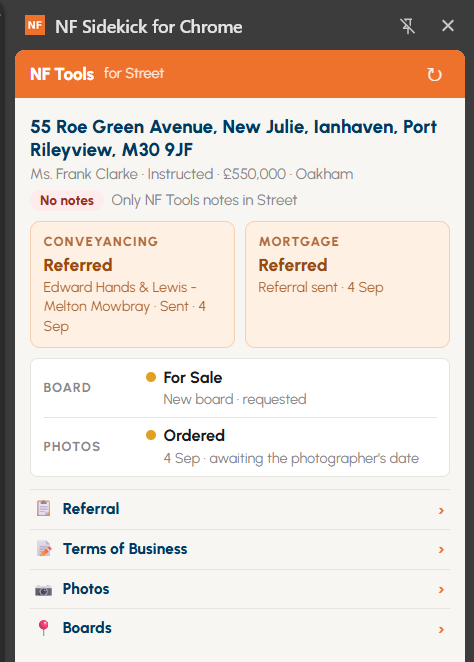
The panel, on a sales property. Everything in it comes from NF Tools; Street is unchanged behind it.
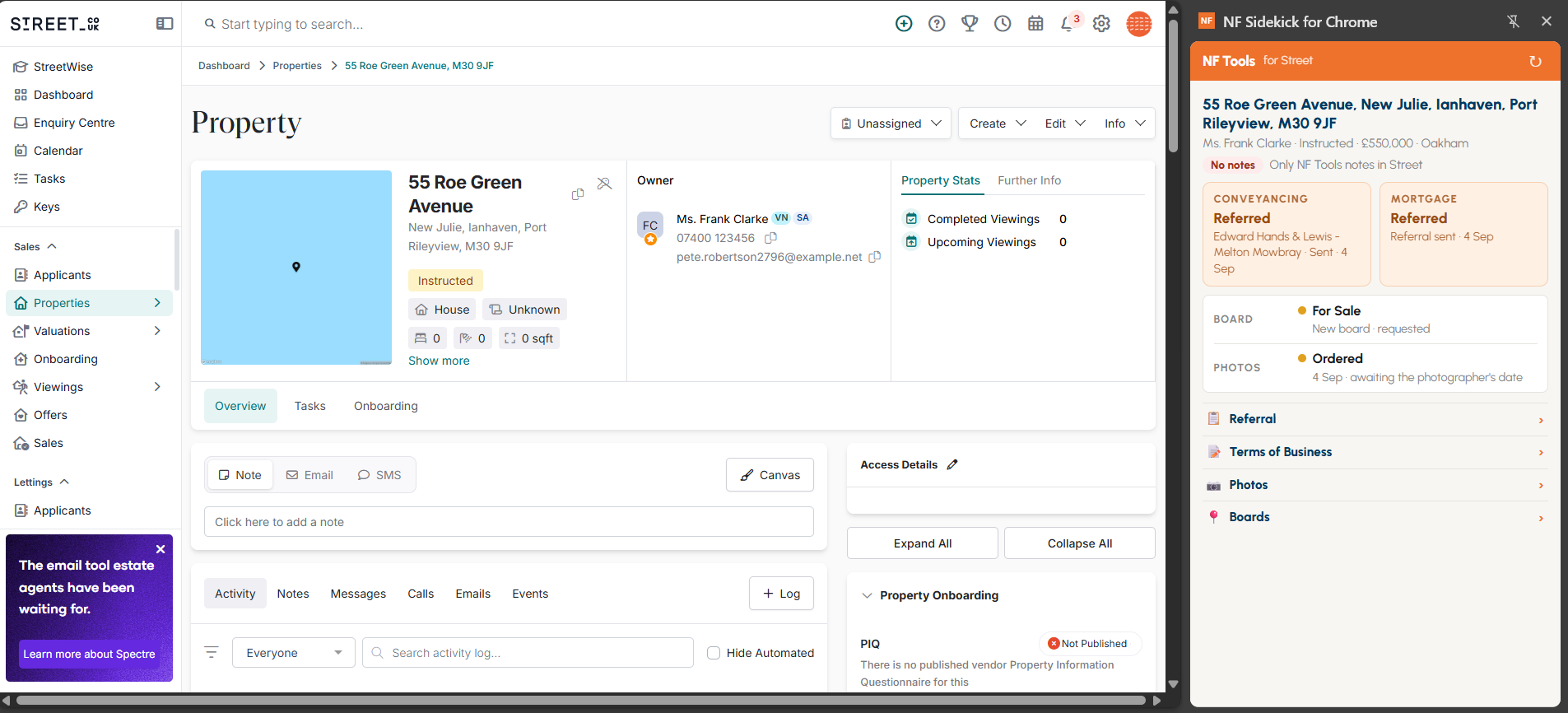
Where it sits - down the right of the window, beside the Street page you were already on.
1
Add it once
Open the link above in Chrome and press Add to Chrome, then Add extension. That is the whole setup - there is no password to enter.
You, once2
Open a Street page
The NF icon lights up on Street pages and is greyed out everywhere else. Click it, or press Alt + Shift + N.
You3
It reads the record
The panel works out which property, applicant or person you are looking at and pulls what NF Tools knows about them. Move to another record and it follows.
Automatic4
Act from the panel
Refer for conveyancing or a mortgage, order a board, order photos or raise a rent change - from the panel, on the record you are already on.
YouWhat you do
- 1Add it to Chrome from the link at the top of this page, or from the NF Sidekick tile on the NF Tools homepage under Group Systems.
- 2Pin it if you like - click the jigsaw piece in Chrome's toolbar and pin NF Sidekick, so the icon is always on show.
- 3Open any Street record - a property, an applicant, a person, an offer, a sale, a valuation, a tenancy, a viewing, an inspection or a move - and open the panel.
- 4Use the coloured boxes. A red Conveyancing or Mortgage box is the refer button - clicking it opens the referral form with that side already ticked and the client's details filled in from Street.
What you'll see on a record
- Who it isName, status, price and office, read from Street and from our own tables.
- Convey & mortgageTwo boxes showing whether this client has been referred and how far it has got. Colours are below.
- Board & photosWhat has been ordered and where it has got to, with a button to order if nothing has.
- Lettings rowsOn a lettings property: the landlord's terms of business, rent guarantee cover, the next inspection, gas / EICR / smoke alarm certificates, open maintenance jobs and any agreed conditions.
- Last noteWhen the record was last noted in Street, and by whom - our own tools' notes do not count.
What the referral colours mean